1、示例主机信息:
hostname:vm0.lansgg.com
ip : 192.168.85.128
Os : centos 6.5 x64
gitlab版本: gitlab-ce-8.7.0-ce.0.el6.x86_64.rpm
Ps : 关闭 iptables selinux
2、系统依赖软件安装
|
1
|
[email protected] ~]# yum install curl openssh-server openssh-clients cronie –y
|
3、安装gitlab
|
1
2
3
4
5
6
7
8
9
10
11
12
13
14
15
16
17
|
[[email protected] ~]# rpm -vhi gitlab-ce-8.7.0-ce.0.el6.x86_64.rpm
Preparing... ########################################### [100%]
1:gitlab-ce ########################################### [100%]
gitlab: Thank you for installing GitLab!
gitlab: To configure and start GitLab, RUN THE FOLLOWING COMMAND:sudo gitlab-ctl reconfigure
gitlab: GitLab should be reachable at http://vm0.lansgg.com
gitlab: Otherwise configure GitLab for your system by editing /etc/gitlab/gitlab.rb file
gitlab: And running reconfigure again.gitlab: gitlab: For a comprehensive list of configuration options please see the Omnibus GitLab readmegitlab: https://gitlab.com/gitlab-org/omnibus-gitlab/blob/master/README.md
gitlab: It looks like GitLab has not been configured yet; skipping the upgrade script.[[email protected] ~]#
|
3.1、初始化
|
1
|
[[email protected] ~]# gitlab-ctl reconfigure
|
到此安装成功:
地址:http://192.168.85.128/
默认用户名是 root , 密码是 5iveL!fe
登陆后会提示修改当前管理员密码
4、设置https
创建ssl证书目录
|
1
2
3
4
5
6
7
|
[[email protected] ~]# mkdir -p /etc/gitlab/ssl
[[email protected] ~]# cd /etc/gitlab/ssl/
[[email protected] ssl]# ll
总用量 8-rw-r--r--. 1 root root 1444 9月 7 16:16 vm0.lansgg.com.crt-rw-r--r--. 1 root root 1704 9月 7 16:16 vm0.lansgg.com.key[[email protected] ssl]#
|
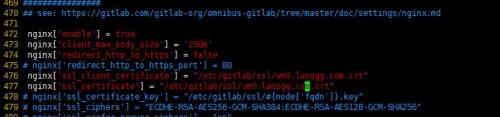
4.1、修改git配置项中的ssl证书文件地址 #/etc/gitlab/gitlab.rb(#大约是477行)
|
1
2
3
4
5
6
7
|
11 external_url '472 nginx['enable'] = true
473 nginx['client_max_body_size'] = '250m'
474 nginx['redirect_http_to_https'] = false
475 # nginx['redirect_http_to_https_port'] = 80
476 nginx['ssl_client_certificate'] = "/etc/gitlab/ssl/vm0.lansgg.com.crt"
477 nginx['ssl_certificate'] = "/etc/gitlab/ssl/vm0.lansgg.com.crt"
|
4.2、修改nginx配置文件
|
1
2
3
4
5
|
38 server { 39 listen *:443;
40 ssl on;
41 ssl_certificate /etc/gitlab/ssl/vm0.lansgg.com.crt;
42 ssl_certificate_key /etc/gitlab/ssl/vm0.lansgg.com.key;
|

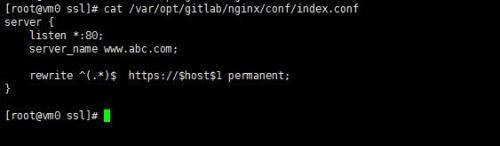
4.3、配置http跳转https
|
1
2
3
4
5
6
7
|
[[email protected] ssl]# vim /var/opt/gitlab/nginx/conf/index.conf ###新建
server { listen *:80;
server_name www.abc.com;
rewrite ^(.*)$ https://$host$1 permanent;
} |
4.4、修改配置文件载入index.conf
配置文件地址:/var/opt/gitlab/nginx/conf/nginx.conf,在其中加入以下内容
|
1
2
|
include/var/opt/gitlab/nginx/conf/index.conf;
include/var/opt/gitlab/nginx/conf/gitlab-http.conf;
|
4.5、重启服务
以上操作全部完成之后, 使用gitlab-ctl restart来重启所有服务, 即可使用HTTPS访问GitLab了.
https://192.168.85.128
https://vm0.lansgg.com
5、gitlab的备份与还原
5.1、gitlab的备份
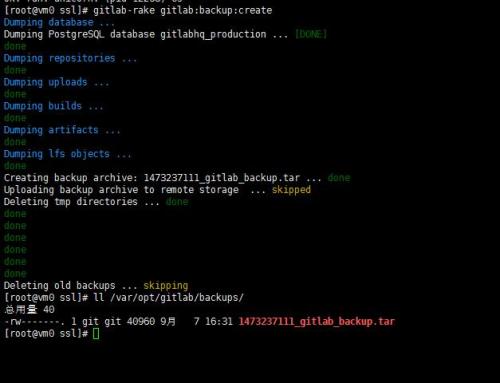
使用Gitlab一键安装包安装Gitlab非常简单, 同样的备份恢复与迁移也非常简单. 使用一条命令即可创建完整的Gitlab备份:
|
1
|
[[email protected] ssl]# gitlab-rake gitlab:backup:create
|
使用以上命令会在/var/opt/gitlab/backups目录下创建一个名称类似为:
1467362634_gitlab_backup.tar 的压缩包, 这个压缩包就是Gitlab整个的完整部分, 其中开头的 1473237111 是备份创建的日期.
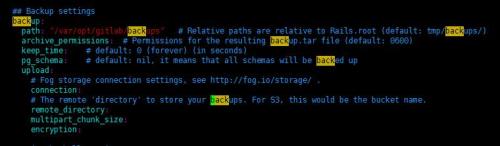
Gitlab 修改备份文件默认目录
|
1
|
[[email protected] etc]# vim /var/opt/gitlab/gitlab-rails/etc/gitlab.yml
|
Gitlab 自动备份
也可以通过crontab使用备份命令实现自动备份:
|
1
|
0 2 * * */opt/gitlab/bin/gitlab-rake gitlab:backup:create
|
5.2、gitlab的还原
停止相关服务
|
1
2
|
[[email protected] etc]# gitlab-ctl stop unicorn
[[email protected] etc]# gitlab-ctl stop sidekiq
|
从备份文件中恢复
以20160630 的备份文件 1467225280_gitlab_backup.tar为例 )
将恢复文件 1467225280_gitlab_backup.tar 放到gitlab的备份目录
[[email protected] gitback]# cp 1467225280_gitlab_backup.tar/var/opt/gitlab/backups/
按照编号进行恢复
[[email protected] gitback]# gitlab-rake gitlab:backup:restoreBACKUP=1467225280
重新启动
|
1
|
[[email protected] etc]# gitlab-ctl restart
|
解决方案:
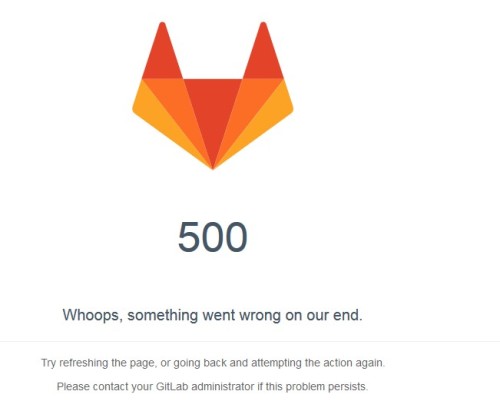
1、按照上述恢复 gitlab后,放你访问git地址时,可能会出现 500 错误;如下:
查看日志信息如下:
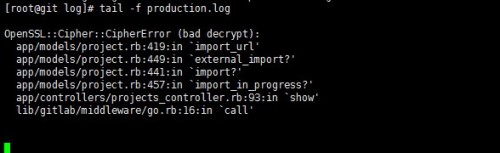
初步以为,因为使用ssl访问时加解密的问题;查了资料,尝试以下步骤:
The temporary solutions are:
-
Copy the old db_key_base from the old instance to the new one.
-
Delete imported project data that is no longer required by projects. Something like this may work:
执行命令:gitlab-rails runner "Project.where.not(import_url: nil).each { |p| p.import_data.destroyif p.import_data }"
本文转自 西索oO 51CTO博客,原文链接:http://blog.51cto.com/lansgg/1847370