ISCSI
iSCSI( Internet Small Computer System Interface 互联网小型计算机系统接口)是由IBM 下属的两大研发机构一一加利福尼亚AImaden和以色列Haifa研究中心共同开发的,是一个供硬件设备使用的、可在IP协议上层运行的SCSI指令集,是一种开放的基于IP协议的工业技术标准。该协议可以用TCP/IP对SCSI指令进行封装,使得这些指令能够通过基于IP网络进行传输,从而实现SCSI 和TCP/IP协议的连接。对于局域网环境中的用户来说,采用该标准只需要不多的投资就可以方便、快捷地对信息和数据进行交互式传输及管理。
iSCSI的工作过程:当iSCSI主机应用程序发出数据读写请求后,操作系统会生成一个相应的SCSI命令,该SCSI命令在iSCSI initiator层被封装成ISCSI消息包并通过TCP/IP传送到设备侧,设备侧的iSCSI target层会解开iSCSI消息包,得到SCSI命令的内容,然后传送给SCSI设备执行;设备执行SCSI命令后的响应,在经过设备侧iSCSI target层时被封装成ISCSI响应PDU,通过TCP/IP网络传送给主机的ISCSI initiator层,iSCSI initiator会从ISCSI响应PDU里解析出SCSI响应并传送给操作系统,操作系统再响应给应用程序。
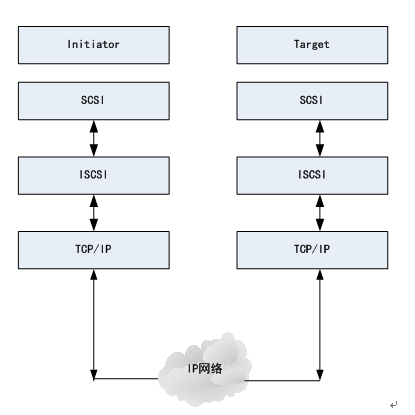
iscsi共享资源
注意:yum镜像要和系统配,本机挂载7.0镜像[[email protected] ~]# yum install targetcli -y #下载共享策略编辑器
[[email protected] ~]# systemctl start target[[email protected] ~]# systemctl enable target
ln -s '/usr/lib/systemd/system/target.service'
'/etc/systemd/system/multi-user.target.wants/target.service'
[[email protected] ~]# systemctl stop firewalld
[[email protected] ~]# systemctl disable firewalld
rm '/etc/systemd/system/basic.target.wants/firewalld.service'
rm '/etc/systemd/system/dbus-org.fedoraproject.FirewallD1.service'
[[email protected] ~]# fdisk /dev/vdb #创建分区
[[email protected] ~]# targetcli #启动targetcli进入配置模式
/> ls
Created block storage object westos:storage1 using /dev/vdb1.
/> /iscsi create iqn.2018-06.com.example:storage1 #创建iscsi限定名称,iqn的方式是域名反写
Created target iqn.2018-06.com.example:storage1.
Created TPG 1.
/> ls
/> /iscsi/iqn.2018-06.com.example:storage1/tpg1/acls create iqn.2018-06.com.example:westoskey
Created Node ACL for iqn.2018-06.com.example:westoskey
#创建一个访问控制列表(用来允许客户端连接的**)
/> /iscsi/iqn.2018-06.com.example:storage1/tpg1/luns create /backstores/block/westos:storage1
# luns:关联,创建一个链接将共享设备和本地设备关联起来
Created LUN 0.
Created LUN 0->0 mapping in node ACL iqn.2018-06.com.example:westoskey
/> /iscsi/iqn.2018-06.com.example:storage1/tpg1/portals create 172.25.254.202 #使用172.25.254.202的访问接口3260
Using default IP port 3260
Created network portal 172.25.254.202:3260.
客户端:
[[email protected] westos]# yum search iscsi
[[email protected] westos]# vim /etc/iscsi/initiatorname.iscsi
InitiatorName=iqn.2018-06.com.example:westoskey #把服务端的**复制过来
[[email protected] westos]# systemctl restart iscsid.service
[[email protected] westos]# iscsiadm -m discovery -t st -p 172.25.254.202
#-m:动作,discovery:发现,-t:类型,-p:主机 查找iscsi 172.25.254.202服务器所提供的iscsi目标
172.25.254.202:3260,1 iqn.2018-06.com.example:storage1
[[email protected] ~]# iscsiadm -m node -T iqn.2018-06.com.example:storage1 -p 172.25.254.202 -l
#-T:目标名称,-l:登陆 登陆172.25.254.202服务器上的一个iscsi目标
Logging in to [iface: default, target: iqn.2018-06.com.example:storage1, portal: 172.25.254.202,3260] (multiple)
Login to [iface: default, target: iqn.2018-06.com.example:storage1, portal: 172.25.254.202,3260] successful.
设备的使用及开机自动挂载
[[email protected] ~]# fdisk /dev/sda
[[email protected] ~]# mkfs.xfs /dev/sda1
[[email protected] ~]# df
[[email protected] ~]# vim /etc/fstab
/dev/sda1 /mnt xfs defaults,_netdev 0 0
_netdev表示开机加载时先**网络再进行挂载,以免影响系统启动
当没有写_netdev时,重启系统以修改密码方式进入编辑页面
rw rd.break
chroot /sysroot
vim /etc/fstab 添加_netdev
再重启虚拟机可以启动
对/etc/fstab进行编辑然后退出重启即可
[[email protected] ~]# reboot
不能正常重启
这时需要强行关闭
rht-vmctl poweroff desktop
再重新开启:rht-vmctl start desktop即可
[[email protected] ~]# df开机自动挂载!
卸载删除设备
[[email protected] ~]# yum install tree -y
[[email protected] ~]# tree /var/lib/iscsi
[[email protected] ~]# df
[[email protected] ~]# umount /mnt
[[email protected] ~]# df
[[email protected] ~]# vim /etc/fstab #删除/dev/sdb1开机自动挂载行
[[email protected] ~]# fdisk -l #/dev/sdb1设备依然存在
[[email protected] ~]# iscsiadm -m node -T iqn.2018-06.com.example:storage1 -p 172.25.254.202 -u #退出登录
Logging out of session [sid: 1, target: iqn.2018-06.com.example:storage1, portal: 172.25.254.202,3260]
Logout of [sid: 1, target: iqn.2018-06.com.example:storage1, portal: 172.25.254.202,3260] successful.
[[email protected] ~]# iscsiadm -m node -T iqn.2018-06.com.example:storage1 -p 172.25.254.202 -o delete #删除服务
下载删除设备成功!