概述

我们搭建exchange server就是能更外部通信,即公网邮件服务器之间传输邮件

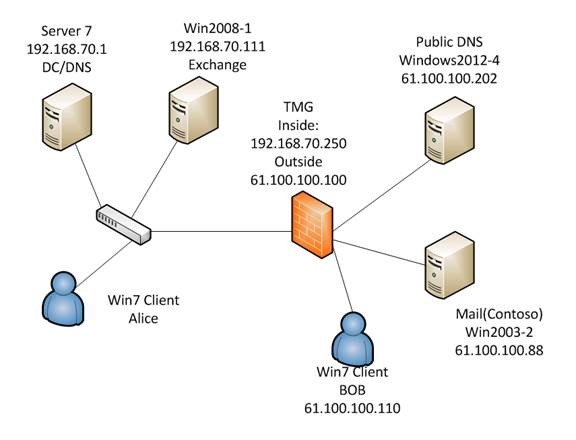
环境如下:
Lesson 5-Exchange server 2010 Transfer mails in public network

Step1: 注册公网DNS

先决条件:不同的邮件域之所以可以相互通信是因为在公网的DNS服务器上有注册的MX 记录

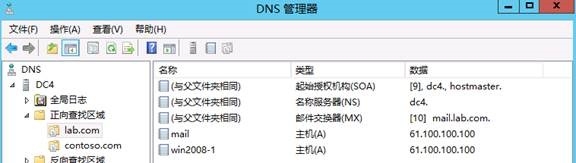
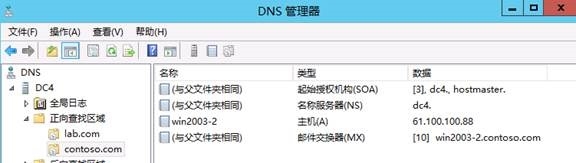
所以我们先要在public DNS 上注册 lab.com 和contoso.com的mx记录
Lesson 5-Exchange server 2010 Transfer mails in public network

Lesson 5-Exchange server 2010 Transfer mails in public network

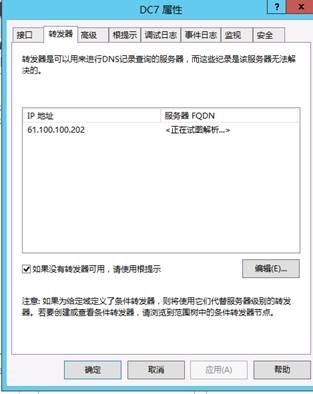
当然在内部dns (windows2012-7)上也要做个转发

Lesson 5-Exchange server 2010 Transfer mails in public network

Step2:安装contoso.com 邮件服务

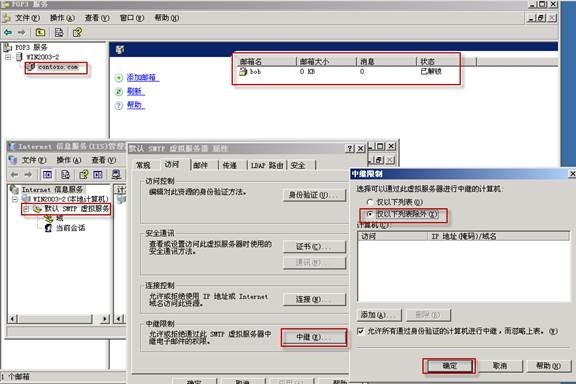
在win2003-2上安装pop3/smtp服务

Lesson 5-Exchange server 2010 Transfer mails in public network

同时创建一个用户BOB邮箱,同时开通smtp中继服务(记得重启下smtp服务)
Lesson 5-Exchange server 2010 Transfer mails in public network

Step3:设置contoso客户端

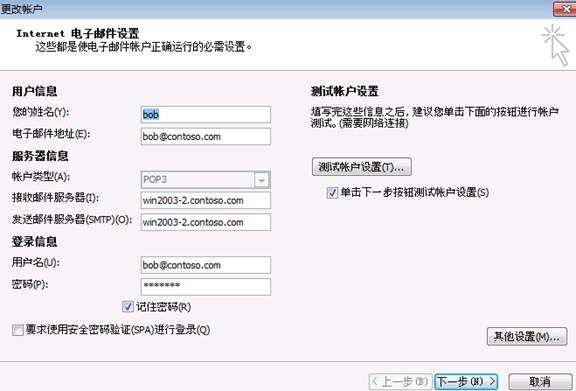
Bob win7客户端设置如下

Lesson 5-Exchange server 2010 Transfer mails in public network

Step4:查看防火墙SMTP(s)发布

Lesson 5-Exchange server 2010 Transfer mails in public network

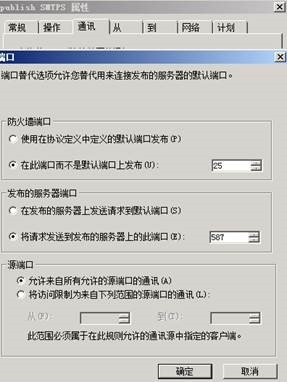
在防火墙上25号端口映射到内部exchange的587端口

Step5:配置exchange Server

5.1收方向(contoso.com--->lab.com)

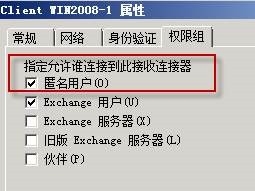
启用匿名smtp连接
Lesson 5-Exchange server 2010 Transfer mails in public network

公网的邮件服务器间传输邮件一定是smtp 25,匿名的身份验证

5.2发方向(lab.com--->cotoso.com)

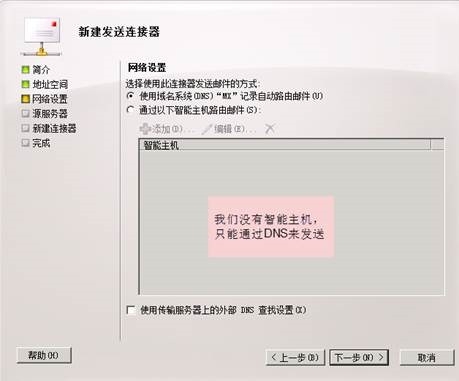
首先要查看下dns,由于我们第一步就做了dns转发

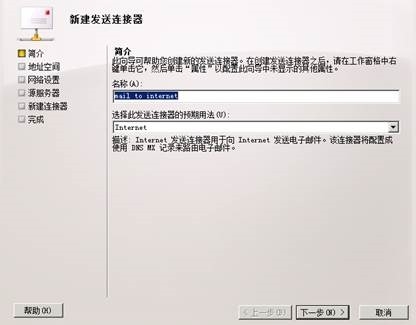
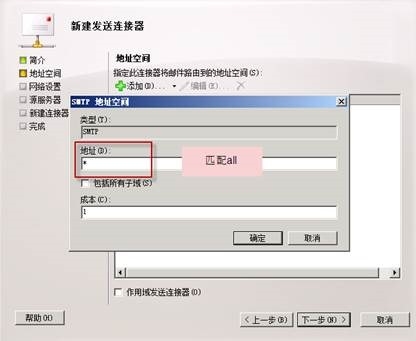
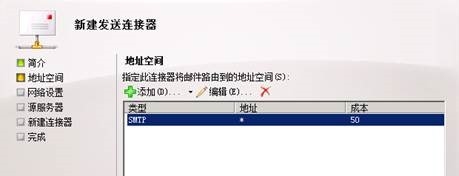
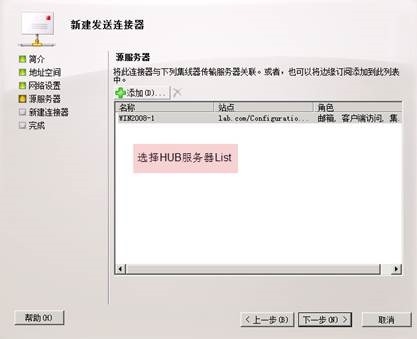
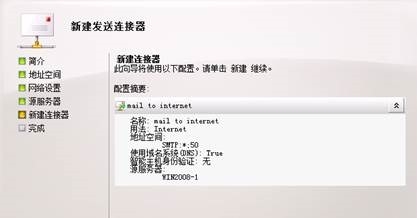
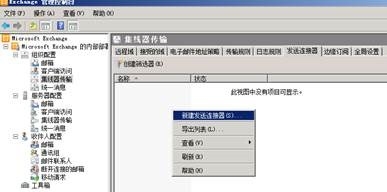
其次,(在没有边缘服务器的情况下)看是否有创建发送连接器
Lesson 5-Exchange server 2010 Transfer mails in public network

Lesson 5-Exchange server 2010 Transfer mails in public network

Lesson 5-Exchange server 2010 Transfer mails in public network

Lesson 5-Exchange server 2010 Transfer mails in public network

Lesson 5-Exchange server 2010 Transfer mails in public network

Lesson 5-Exchange server 2010 Transfer mails in public network

Lesson 5-Exchange server 2010 Transfer mails in public network

创建完成

这样[email protected]就可以收发[email protected]


本文转自 bilinyee博客,原文链接:      http://blog.51cto.com/ericfu/1635998  如需转载请自行联系原作者


相关文章:

  • 2021-11-06
  • 2022-12-23
  • 2021-06-29
  • 2021-08-21
  • 2021-05-11
  • 2021-11-04
  • 2021-07-01
  • 2021-09-27
猜你喜欢
  • 2022-01-20
  • 2021-11-29
  • 2021-04-02
  • 2021-11-21
  • 2021-08-26
  • 2021-12-01
  • 2021-04-11
相关资源
相似解决方案