我们在安装完notepad++文本编辑器之后,在一个文本文件上右键有时候并没有出现“使用notepad++编辑的选项”,我们可以通过简单地修改注册表文件来增加这样的功能
1、 首先打开注册表,windows + R运行,在运行窗口中输入 regedit,进入注册表编辑器
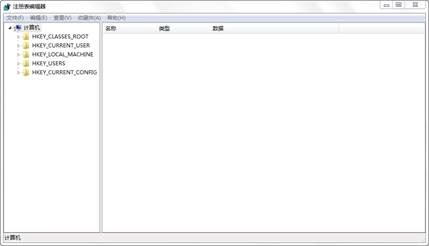
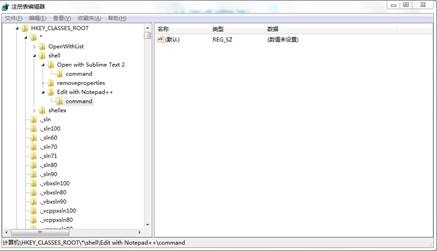
2、在左边的导航中找到路径:HKEY_CLASSES_ROOT\*\shell
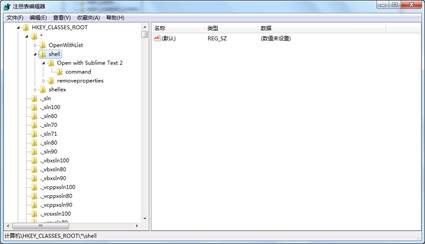
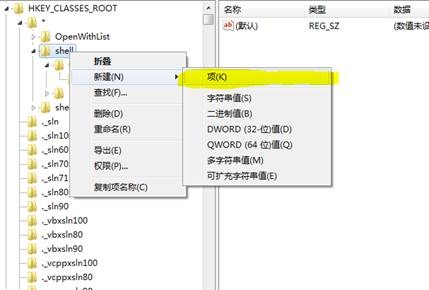
3、 在shell上右键,新建项,命名为edit with notepad++
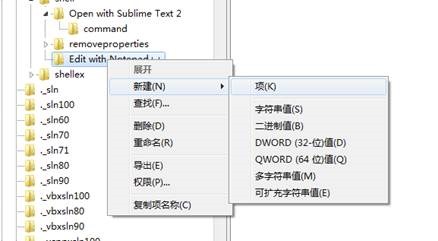
4、 在新建的项edit with notepad++上右键,然后新建一个项,命名为command,新建了command之后选中command项会发现右边有相应的值,双击默认进行修改
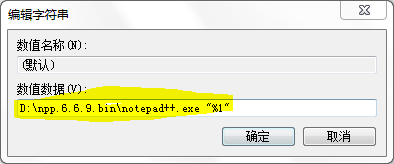
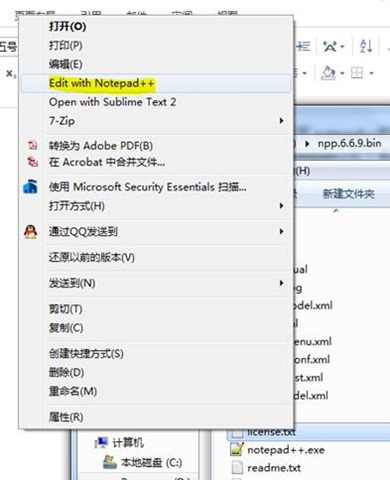
5、 双击默认后对其值进行修改,先写notepad++的路径,然后写上“%1”,点击确定,在任意文件上右键都会有edit with notepad++这个选项
参考自:
http://www.howtogeek.com/howto/windows-vista/add-open-with-notepad-to-the-context-menu-for-all-files/
1、 首先打开注册表,windows + R运行,在运行窗口中输入 regedit,进入注册表编辑器
2、在左边的导航中找到路径:HKEY_CLASSES_ROOT\*\shell
3、 在shell上右键,新建项,命名为edit with notepad++
4、 在新建的项edit with notepad++上右键,然后新建一个项,命名为command,新建了command之后选中command项会发现右边有相应的值,双击默认进行修改
5、 双击默认后对其值进行修改,先写notepad++的路径,然后写上“%1”,点击确定,在任意文件上右键都会有edit with notepad++这个选项
参考自:
http://www.howtogeek.com/howto/windows-vista/add-open-with-notepad-to-the-context-menu-for-all-files/