转自 https://tecadmin.net/install-openssl-on-windows/
OpenSSL is a full-featured toolkit for the Transport Layer Security (TLS) and Secure Sockets Layer (SSL) protocols. It is licensed under an Apache-style license. This tutorial will help you to install OpenSSL on Windows operating systems.
Step 1 – Download OpenSSL Binary
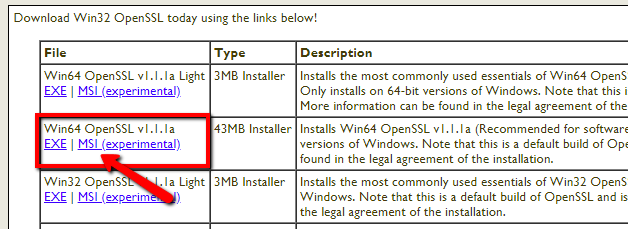
Download the latest OpenSSL windows installer from Official download page. The official download page link is given below:
http://slproweb.com/products/Win32OpenSSL.html
Step 2 – Run OpenSSL Installer
Now run the OpenSSL installer on your system. The OpenSSL required Microsoft Visual C++ to be installed on your system. If your system doesn’t have Microsoft Visual C++ installed, the installer will show your message like:
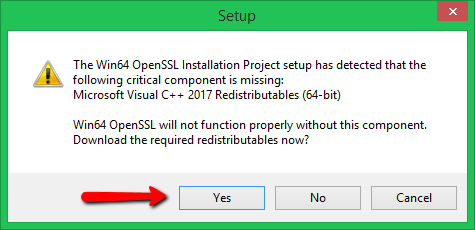
Click Yes to download and install required Microsoft Visual C++ package on your system.
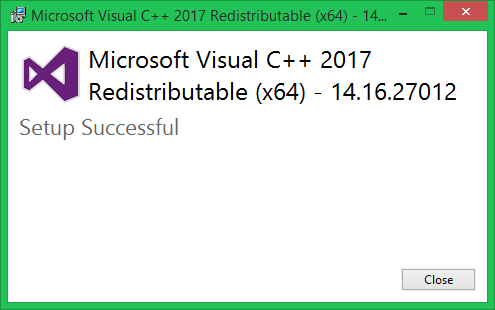
Then again run the OpenSSL installer and follow the wizard.
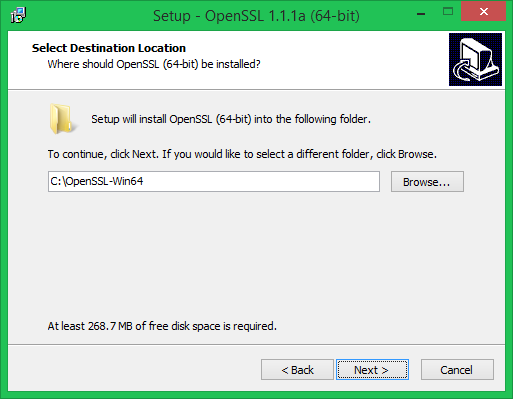
Step 3 – Setup Environment Variables
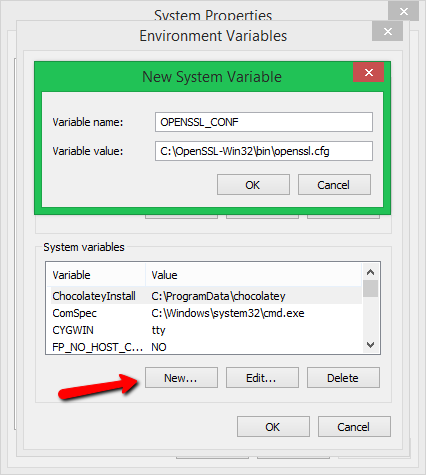
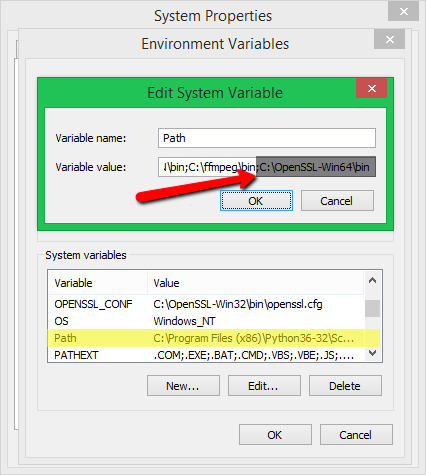
Now set the environment variables to function OpenSSL properly on your system. You are required to set OPENSSL_CONF and Path environment variables.
set OPENSSL_CONF=C:\OpenSSL-Win32\bin\openssl.cfg
set Path=......Other Values here......;C:\OpenSSL-Win32\bin
Set OPENSSL_CONF Variable:
Set Path Variable:
Step 4 – Run OpenSSL Binary
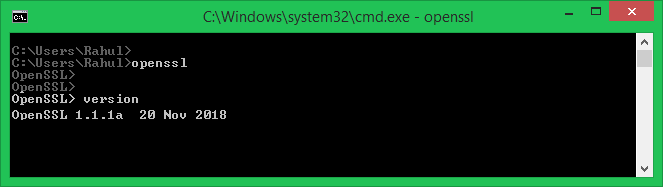
Open a command prompt and type openssl to get OpenSSL prompt. Then run version command on OpenSSL proper to view installed OpenSSL version.