简介:
作为中小公司的运维,经常会遇到一些机械式的重复工作,例如:有时公司同时上线几十甚至上百台服务器,而且需要我们在短时间内完成系统安装。
常规的办法有什么? 光盘安装系统===>一个服务器DVD内置光驱百千块,百台服务器都配光驱就浪费了,因为一台服务器也就开始装系统能用的上,以后用的机会屈指可数。用USB外置光驱,插来插去也醉了。
U盘安装系统===>还是同样的问题,要一台一台服务器插U盘。
网络安装系统(ftp,http,nfs) ===>这个方法不错,只要服务器能联网就可以装系统了,但还是需要一台台服务器去敲键盘点鼠标。时刻想偷懒的我们,有没有更好的方法!
高逼格的方法:
Kickstart
Cobbler
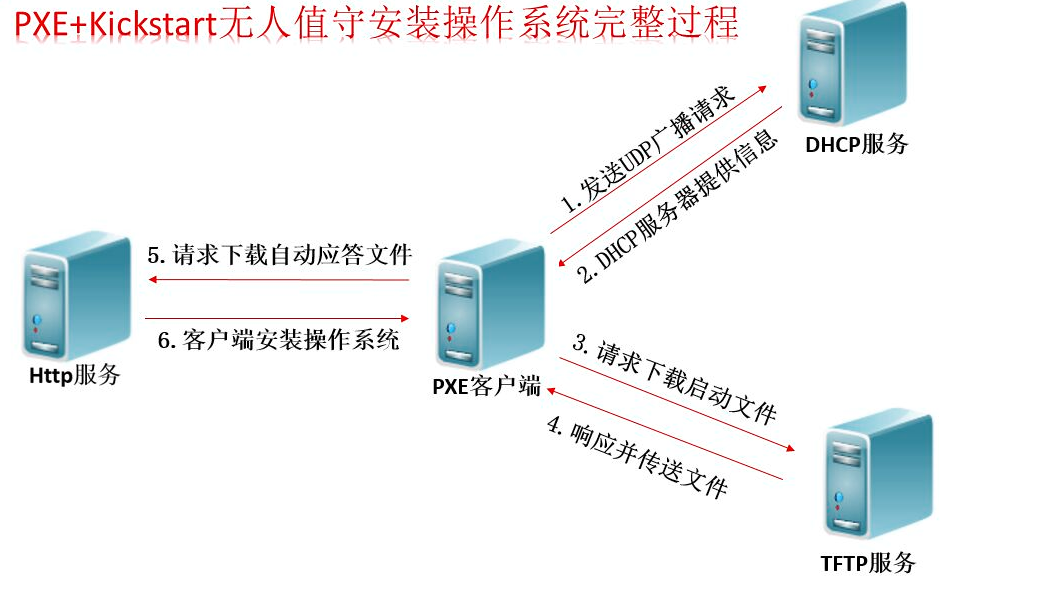
在进入主题前,首先会向大家介绍一下什么是pxe,pxe能干什么,Kickstart是什么,Cobbler又有什么特别。
什么是PXE:
PXE,全名Pre-boot Execution Environment,预启动执行环境;
通过网络接口启动计算机,不依赖本地存储设备(如硬盘)或本地已安装的操作系统;
由Intel和Systemsoft公司于1999年9月20日公布的技术;
Client/Server的工作模式;
PXE客户端会调用网际协议(IP)、用户数据报协议(UDP)、动态主机设定协议(DHCP)、小型文件传输协议(TFTP)等网络协议;
PXE客户端(client)这个术语是指机器在PXE启动过程中的角色。一个PXE客户端可以是一台服务器、笔记本电脑或者其他装有PXE启动代码的机器(我们电脑的网卡)。
拓扑图:
系统环境:
dhcp-4.1.1-51.P1.el6.centos.x86_64.rpm
tftp-server-0.49-8.el6.x86_64.rpm
xinetd-2.3.14-40.el6.x86_64.rpm
httpd-2.2.15-56.el6.centos.3.x86_64.rpm
httpd-tools-2.2.15-56.el6.centos.3.x86_64.rpm
syslinux-4.04-3.el6.x86_64.rpm
syslinux-nonlinux-4.04-3.el6.noarch.rpm
安装前准备:
[[email protected] ~]# hostname m01
[[email protected] ~]# vim /etc/hosts
[[email protected] ~]# setenforce 0 ##临时关闭,但重启之后还是会变成原来的状态
[[email protected] ~]# getenforce
Permissive
[[email protected] ~]# sed -i '7s#enforcing#disabled#' /etc/sysconfig/selinux ##selinux永久关闭
[[email protected] ~]# /etc/init.d/iptables stop
[[email protected] ~]# yum -y install dhcp
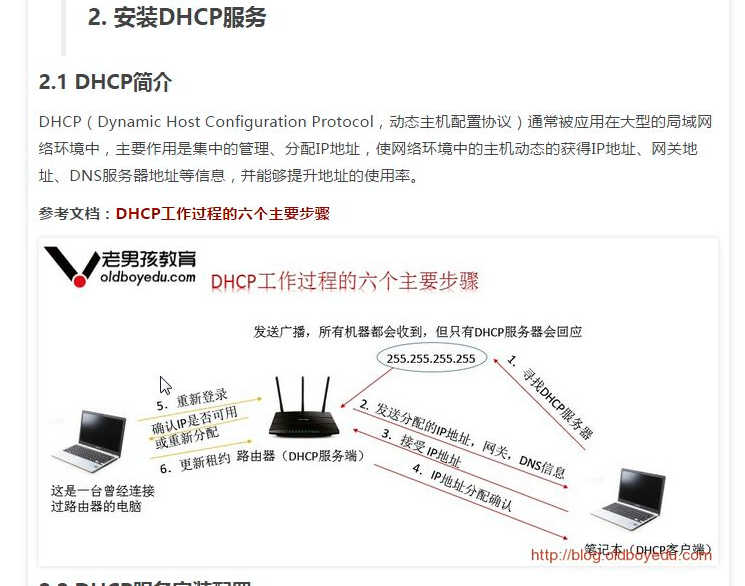
安装配置DHCP服务:
|
1
2
3
4
5
6
7
8
9
10
11
12
13
14
15
|
#配置DHCP服务[[email protected] ~]# yum -y install dhcp
# DHCP Server Configuration file.
# see /usr/share/doc/dhcp*/dhcpd.conf.sample
# see 'man 5 dhcpd.conf'
#
subnet 172.16.1.0 netmask 255.255.255.0 { #设置子网声明
range 172.16.1.100 172.16.1.200; # 可分配的起始IP 结束IP
option subnet-mask 255.255.255.0; #设置掩码
default-lease-time 21600; #设置默认IP的租期时间
max-lease-time 43200; #设置默认IP最长租期时间
next-server 172.16.1.61; #指定tftp服务器地址
filename "/pxelinux.0"; # tftp服务器根目录下面的PXE专用的一个boot loader 文件
}
|
|
1
2
3
4
|
#启动DHCP服务[[email protected] ~]# /etc/init.d/dhcpd start
Starting dhcpd: [ OK ][[email protected] ~]# chkconfig dhcpd on
|
安装配置TFTP服务:
|
1
2
3
4
|
#安装TFTP服务[[email protected] ~]# yum -y install tftp-server
[[email protected] ~]# sed -i '14s#yes#no#' /etc/xinetd.d/tftp ##用于开启tftp服务
###server_args 用于修改tftp根目录,这里不需要更改。
|
|
1
2
3
4
|
#启动tftp服务[[email protected] ~]# /etc/init.d/xinetd start
Starting xinetd: [ OK ][[email protected] ~]# chkconfig xinetd on
|
|
1
2
3
4
5
6
|
安装http服务[[email protected] ~]# yum -y install httpd
sed -i "277i ServerName 127.0.0.1:80" /etc/httpd/conf/httpd.conf ##监控本地的80端口
[[email protected] ~]# /etc/init.d/httpd start
Starting httpd: [ OK ][[email protected] ~]# chkconfig httpd on
|
|
1
2
|
最后检测三个服务是否都处于开启状态[[email protected] ~]# netstat -tunlp|egrep 'httpd|dhcpd|xinetd'
|
注:生产环境需要把镜像文件上传到服务器上面
|
1
2
3
4
|
这边我用的是虚拟机,需要把光盘镜像挂在起来[[email protected] ~]# mkdir -p /var/www/html/CentOS-6.8
[[email protected] ~]# mount /dev/cdrom1 /var/www/html/CentOS-6.8
mount: block device /dev/sr0 is write-protected, mounting read-only
|
PXE系统文件配置:
|
1
2
3
4
5
6
|
复制PXE启动时需要的文件[[email protected] ~]# yum -y install syslinux ##安装引导程序(提pxelinux.0文件)
[[email protected] ~]# cp /usr/share/syslinux/pxelinux.0 /var/lib/tftpboot/ ##复制引导文件到TFTP的根目录
[[email protected] ~]# cp -a /var/www/html/CentOS-6.8/isolinux/* /var/lib/tftpboot/
[[email protected] ~]# mkdir -p /var/lib/tftpboot/pxelinux.cfg #创建系统的.cfg启动菜单文件夹,并将镜像的.cfg启动菜单拷贝
[[email protected] ~]# cp /var/www/html/CentOS-6.8/isolinux/isolinux.cfg /var/lib/tftpboot/pxelinux.cfg/default
|
个人定制系统:
|
1
2
3
4
5
|
创建个人定制系统[[email protected] ~]# tar xfP ks_config20170319.tar.gz###http://pan.baidu.com/s/1slwG665#####下载地址[[email protected] html]# ls ks_config/CentOS-6.8-ks.cfg CentOS-Base.repo epel.repo hosts optimization.sh sshd_config sysctl.conf |
|
1
2
3
4
5
6
7
8
|
##修改系统启动引导菜单[[email protected] html]# cat>/var/lib/tftpboot/pxelinux.cfg/default<<EOF
> default ks> prompt 0> label ks_config/> kernel vmlinuz> append initrd=initrd.img ks=http://172.16.1.5/ks_config/CentOS-6.8-ks.cfg ksdevice=eth1
> EOF |
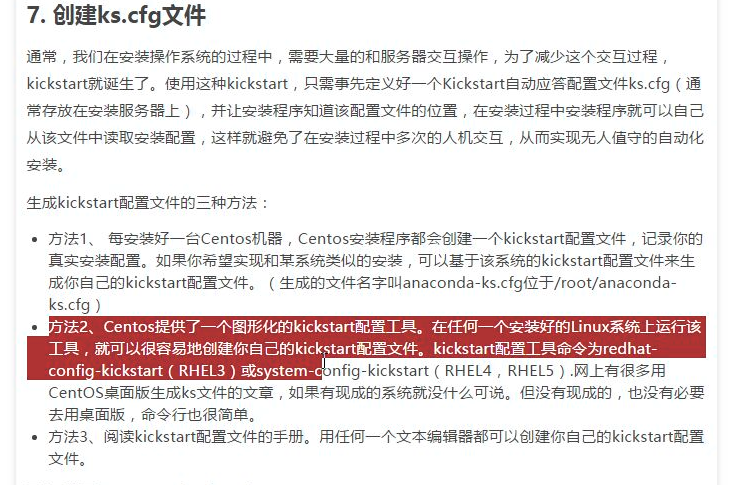
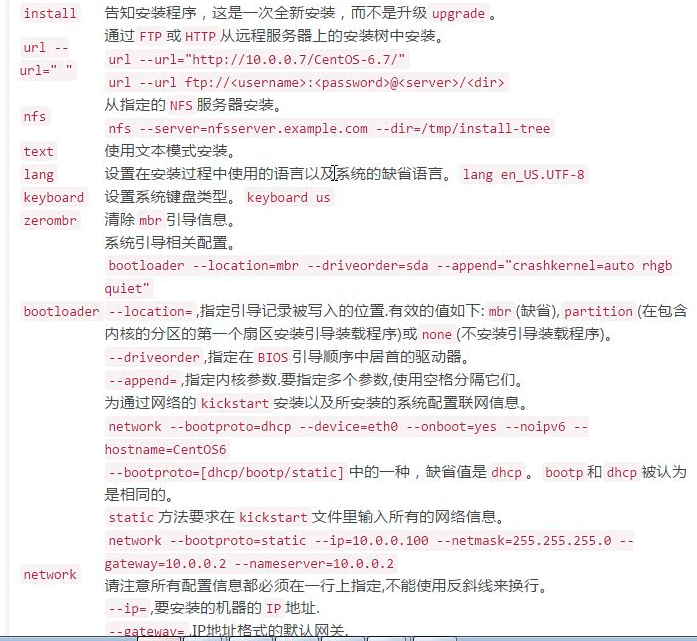
配置ks.cfg文件:
|
1
2
3
4
5
6
7
8
9
10
11
12
13
14
15
16
17
18
19
20
21
22
23
|
[[email protected] ks_config]# vim CentOS-6.8-ks.cfg
# Kickstart Configurator for CentOS 6.7 by yao zhanginstall ##明确指定系统次次进行的是全新安装系统;
url --url="http://172.16.1.61/CentOS-6.8/" #指定通过HTTP从网络获取安装树;
text #以文本方式进行kickstart安装
lang en_US.UTF-8keyboard us ## 设置键盘类型;
zerombr ## 清除mbr信息,会同时清空系统用原有分区表
bootloader --location=mbr --driveorder=sda --append="crashkernel=auto rhgb quiet" ##设定boot loader安装选项 #-append=指定内核参数 #--driveorder=设定设备BIOS中的开机设备启动顺序#--location=设定引导记录的位置#network --bootproto=dhcp --device=eth1 --onboot=yes --noipv6 --hostname=CentOS6 #配置网络信息
timezone --utc Asia/Shanghai # 设置系统的时区;
authconfig --enableshadow --passalgo=sha512 #设置系统的认证方式;默认为加密但不隐藏(shadow);# —enableshadow使用隐藏密码;
rootpw --iscrypted $6$X20eRtuZhkHznTb4$dK0BJByOSAWSDD8jccLVFz0CscijS9ldMWwpoCw/ZEjYw2BTQYGWlgKsn945fFTjRC658UXjuocwJbAjVI5D6/
clearpart --all --initlabelpart /boot --fstype=ext4 --asprimary --size=200
part swap --size=1024 part / --fstype=ext4 --grow --asprimary --size=200firstboot --disableselinux --disabled #关闭seLinux
firewall --disabled #关闭防火墙
logging --level=inforeboot |
|
1
2
3
4
5
6
7
8
9
10
11
12
13
14
15
|
%packages@base@compat-libraries@debugging@developmenttreenmapsysstatlrzszdos2unixtelnet%postwget -O /tmp/optimization.sh http://172.16.1.61/ks_config/optimization.sh &>/dev/null
/bin/sh /tmp/optimization.sh
%end |
|
1
2
3
4
5
|
注意:如果自己制作ks.cfg root的密码生成grub-crypt #密方式为sha512生成的密码
Password: rhceRetype password: rhce$6$QHOksakPohOoVUL9$CNCHfAMYDZZZzZixAGGKCWdPkK8qVvpRk9DkaDOJtrRXlJkzk5GHMZ9zqCTdr8Qiozl9qHOVT5XnbGaZKt06d0 |