登录 http://47.92.39.225:8080/ 查看更多文章
Oracle VirtualBox 5.1.20 has been released on Apr 18, 2017. Oracle VirtualBox 5.1.14 is the maintenance release of VirtualBox 5.1 which improves stability and fixes regression. See the ChangeLog for more details.
This article will help you to install Oracle VirtualBox on your Ubuntu 17.04, 16.10, 16.04 LTS, 14.04 LTS, 12.04 LTS and Debian 8/7 systems.
Step 1: Setup Apt Repository
Firstly edit /etc/apt/sources.list file and add one of the following lines according to your distribution to your system. You can find your system distribution codename using “lsb_release -c” command from a terminal.
For Ubuntu 17.04 ("Zesty")
deb http://download.virtualbox.org/virtualbox/debian zesty contrib

For Ubuntu 16.04 ("Xenial")
deb http://download.virtualbox.org/virtualbox/debian xenial contrib

For Ubuntu 14.04 ("Trusty")
deb http://download.virtualbox.org/virtualbox/debian trusty contrib

For Ubuntu 12.04 LTS ("Precise Pangolin")
deb http://download.virtualbox.org/virtualbox/debian precise contrib

For Debian 8 ("Jessie")
deb http://download.virtualbox.org/virtualbox/debian jessie contrib

For Debian 7 ("Wheezy")
deb http://download.virtualbox.org/virtualbox/debian wheezy contrib
Step 2: Setup Oracle public key
After adding required apt repository in your system, download and import the Oracle public key for apt-secure using following commands.
$ wget -q https://www.virtualbox.org/download/oracle_vbox_2016.asc -O- | sudo apt-key add -
$ wget -q https://www.virtualbox.org/download/oracle_vbox.asc -O- | sudo apt-key add -
Step 3: Install Oracle VirtualBox
After completing above steps, let’s install VirtualBox using following commands. If you have already installed any older version of VirtualBox, Below command will update it automatically.
$ sudo apt-get update
$ sudo apt-get install virtualbox-5.1
Step 4: Start VirtualBox
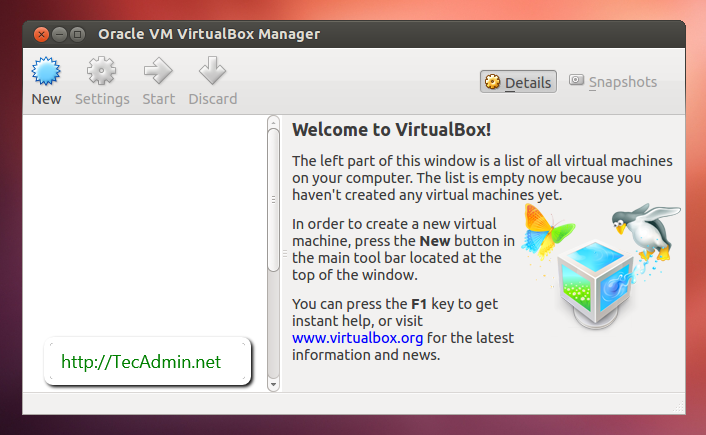
We can use dashboard shortcuts to start VirtualBox or simply run following command from a terminal.
$ virtualbox